

App guide
Interventus guide
How to use Interventus, screen by screen: from the first launch to the report signed by the customer. The pictures are the app's own screens.
Download the guide as PDF PDF, 2.6 MB, to keep on your phone or print
First launch
The first time you open Interventus you see the Welcome screen. Choose how to start:
- 14-day free trial: the whole app unlocked, no card. You sign in with your Google account. You only need an internet connection to start.
- Buy the full version: the subscription, monthly or yearly, is paid through Google Play.
- Try the demo: 30 minutes with sample data, to look around without typing anything of your own.
During the trial, More shows how many days are left. At the end nothing is charged: if you want to carry on, you subscribe yourself.
The app also asks permission for notifications: say yes, they are needed for appointment reminders.

First thing: your company details
Where to find it: MoreSettingsCompany details and rates
Do it once, before your first job: these details go at the top of every report and let the app do the sums for you.
On the report
Company name, address, VAT number, phone and email. This is also where you upload your logo: wide and short works best, about 600 × 200 pixels, as a PNG with no background. The app trims the empty edges around the logo by itself and straightens one photographed with the phone.
What you charge
Your hourly rate, call-out charge and VAT. They apply to every customer; for a special customer you can set different ones on their card.
What it costs you
Your hourly cost and your van cost per km. They never appear on the report: they only work out what you keep.
Footer note
In the NOTE at the bottom of reports and quotes box write, for example, your tax wording. It is printed small at the bottom of every page of reports and quotes. Leave it empty and nothing appears.
Behaviour
With Add the call-out charge switched on, it goes into every new job by itself.
Documents
With Open the documents you keep manuals, certificates, contracts and insurance inside the app. They open on site too, with no signal. With Share, next to the bin, you send them by WhatsApp, email or another app, under the name you chose.

How the app is laid out
There are always four items at the bottom. From there you reach everything.
Calendar
Your appointments, by day, week or month.
Customers
Your customer list, searchable by name, phone or street.
Jobs
Open jobs only: to do and in progress.
More
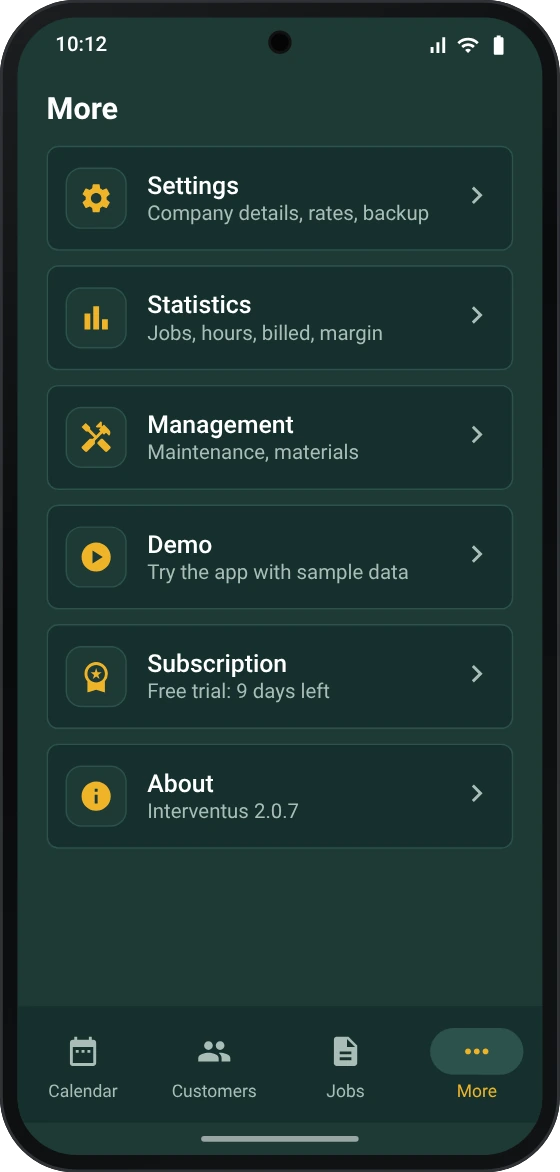
Settings, Statistics, Management (maintenance, materials), Demo, Subscription and About.
Inside any screen, the arrow at the top left takes you back.
Customers
Where to find it: CustomersAdd customer
For a new customer, name and phone are enough. Add the rest later, when you need it, under More details: address, email, tax details for invoicing and notes.
Under Rates for this customer only you can set a different hourly rate and call-out charge. Leave them empty to use the ones in Company details.
Already have your customers in Excel or your business software? Save them as a CSV file and load it from More → Settings → Import customers from file. Interventus suggests where each column goes and you check it with a tap. Customers already there (same VAT number, or same name and phone) are skipped.
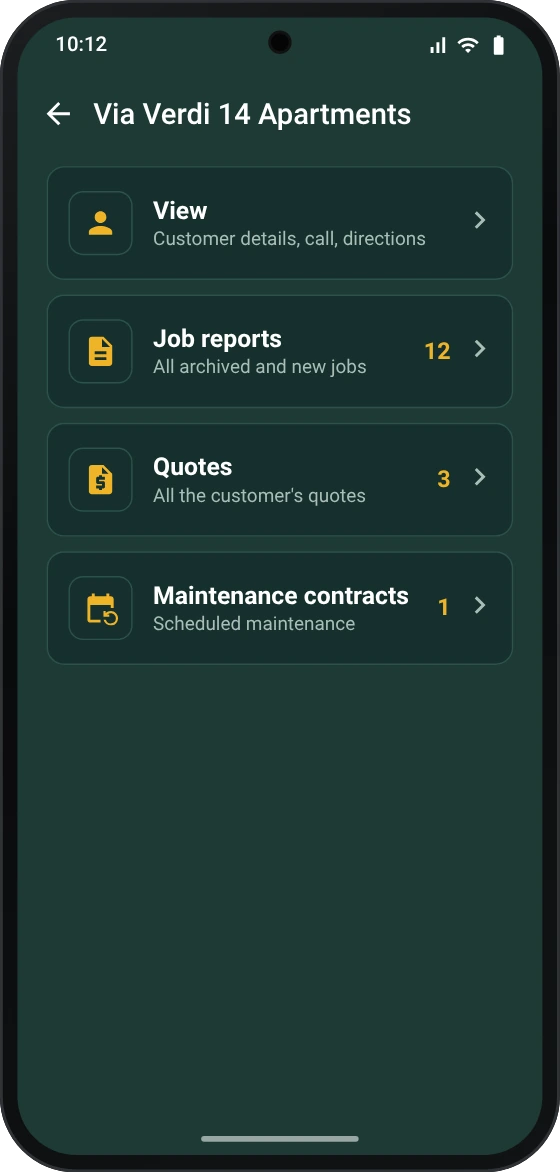
On the customer card: four buttons, with the count next to each
- View: all the customer's details and notes, with Call and Directions to phone them or open navigation with one tap. The pencil at the top to edit, Delete customer at the bottom.
- Job reports: NEW JOB to start a job already addressed to them, and below all their jobs, closed ones included.
- Quotes: New quote and all the customer's quotes.
- Maintenance contracts: New maintenance and the customer's scheduled maintenance.
Careful. Delete customer also removes everything inside: jobs, materials, photos and reports. There is no going back.
Calendar and appointments
Where to find it: Calendar+
At the top choose the view: Day, Week or Month. The arrows at the top, or a swipe left or right, move back and forth; Back to today jumps straight to today.
The + at the bottom right creates an appointment:
- Type the title: site visit, repair, delivery…
- Pick the customer from your list, or type a name by hand. If they are new, Save to customers adds them to your list.
- Set the day and time, or All day.
- Choose the reminder: none, from 10 minutes to 2 hours before, or the day before.
- Add address and notes, then tap SAVE.
When you get to the customer, open the appointment and tap Create the job: it starts already addressed to them.
Already using a Google, Samsung or Outlook calendar? From More → Settings → Import from another calendar choose the calendars and whether to take appointments from today on or past ones too. The phone calendar is never changed, and appointments already imported are not copied twice.
Tip. If reminders arrive a few minutes late, turn on Alarms & reminders for Interventus in your phone settings.


A job, step by step
Where to find it: JobsNew job
A job starts from Jobs, from the customer card or from an appointment. Pick the customer and the job gets its own number for the year, for example 13/2026.
Inside there are four tabs, to fill in any order you like:
1 · Work
Write the work done in your own words. To avoid typing, use the keyboard microphone and dictate. For the hours: Start runs the timer while you work, Stop ends it and the hours become labour at your rate. The timer keeps running even if you leave or close the app. With the timer stopped, tap the time to type in hours and minutes. If you prefer, type the labour amount directly: that is what counts. Private notes are just for you and never go on the report.
2 · Materials
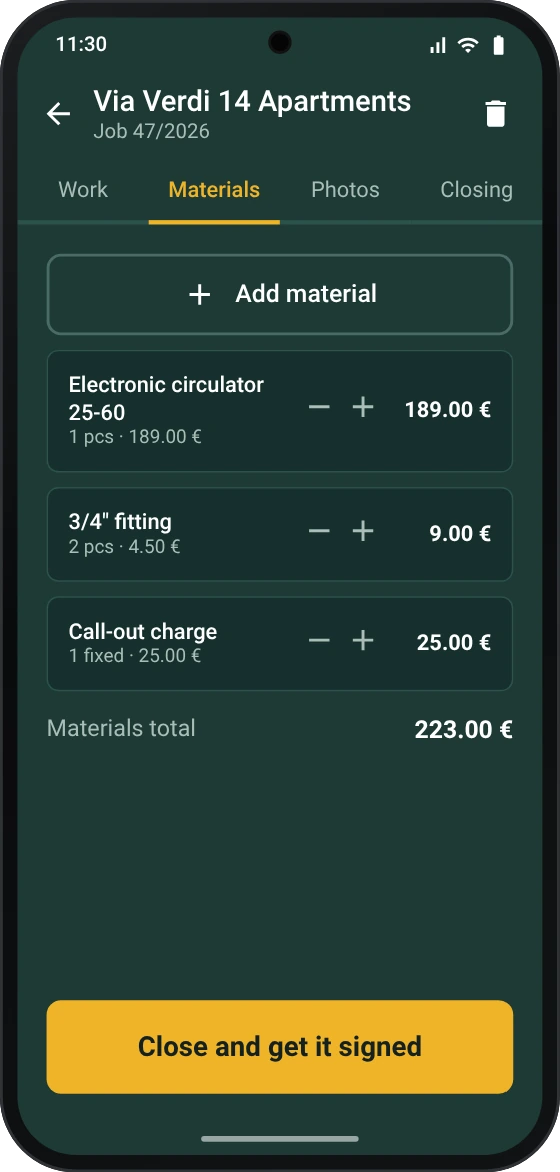
Tap Add material: the most used are at the top, or search by code or description. If it is missing, create it on the spot. − and + change the quantity. The call-out charge, if switched on, is already there.
3 · Photos
Choose Before, During or After and tap Take photo. Photos stay inside Interventus, not in your phone gallery, and are printed on the report.
4 · Closing
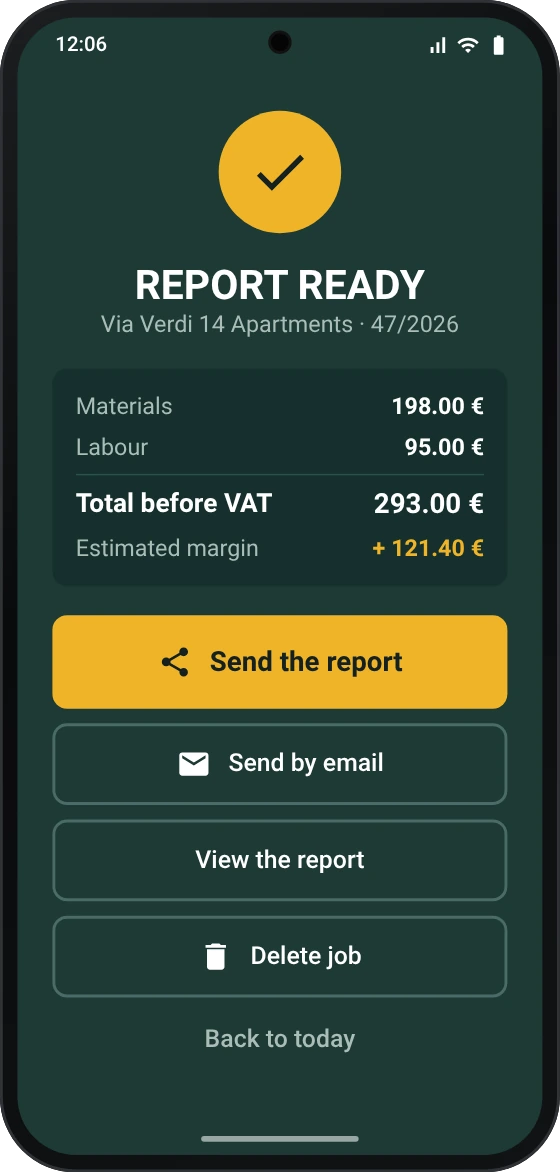
The summary: materials, labour, total before VAT, VAT and total. You also see the estimated margin, what you keep after the cost of materials. Only you see the margin.
You can leave a job half done and pick it up whenever you like: it waits for you in Jobs. When you have finished, tap Close and get it signed: if the timer is still running, it stops and the time is added.



Customer signature and report
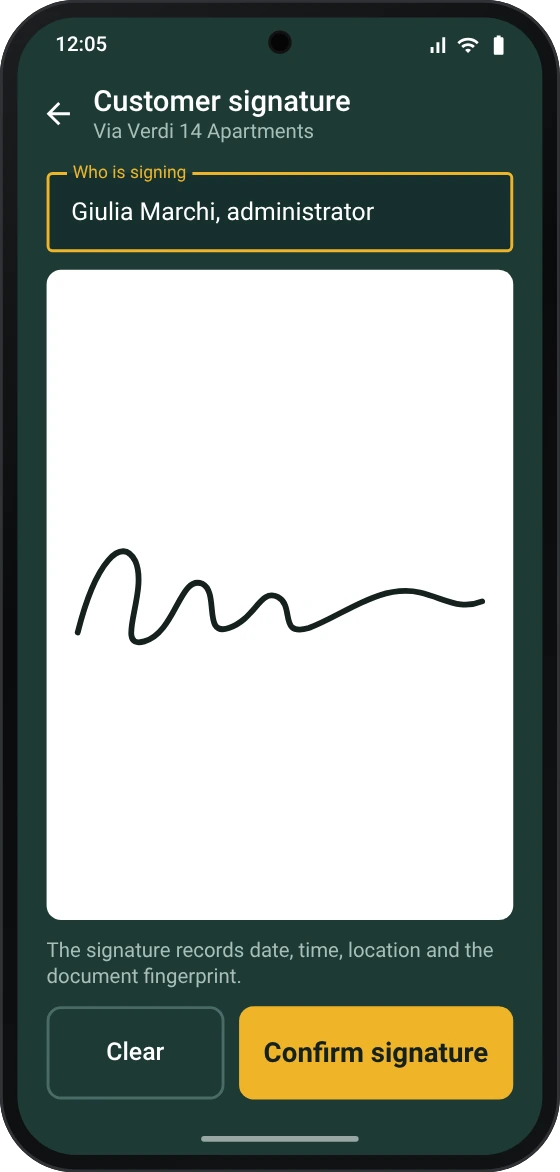
- Under Who is signing goes the signer's full name: if the customer is a person it is already filled in, if it is a company you type it.
- The customer signs with a finger in the white box. If it goes wrong, Clear and sign again.
- The first time, the app asks whether to record where the signature was made. With THAT'S FINE, the report shows the coordinates and the distance from the customer's address. With NOT NOW the signature is just as valid.
- Tap Confirm signature: the PDF report is ready.
On the Report ready screen choose: Send the report with WhatsApp or another app, Send by email (if the customer has an email in their details, it is already filled in), or View the report to check it.
What is on the report
- at the top your details, logo, number and date;
- the customer, the work done, materials and labour;
- total before VAT, VAT and total;
- the photos, three per row;
- at the bottom of every page your note, if you wrote one;
- the signature, with the signer's name, date, time, location, distance and phone used.
Careful. Once signed, the job is locked: you can read it and resend the PDF, but not change description, hours, materials or photos. So your copy and the customer's always say the same thing. If you got it all wrong, on Report ready tap Delete job: after you confirm, the job goes with its PDF, photos and signature, and you start again. There is no going back.
What an on-screen signature is worth
It is a simple electronic signature. The EU eIDAS regulation (article 25) says it cannot be refused as evidence just because it is electronic. Courts weigh it freely, looking at how secure and unalterable the document is.
That is why Interventus records date, time, location, distance from the address, the phone used and the document fingerprint: a code that changes if anyone edits the PDF. Acts that the law requires with a qualified signature need a different tool.
These lines are not legal advice. For important contracts or disputes, ask a lawyer.
Open jobs
Where to find it: Jobs
Jobs to do and in progress stay here, with their status and amount. It is your list of things to close. The yellow + at the bottom right lets you pick a customer and start a new job.
Below you find Recently closed: the last five signed jobs. Tap one to go back to Report ready, to send it again or view it. All the others are under Job reports on the customer card.
Maintenance, quotes and materials
Where to find it: MoreManagement
Scheduled maintenance
Created from the customer card, with Maintenance contracts and then New maintenance: write what is maintained (boiler, switchboard, server…), how often (3, 6, 9 or 12 months) and the next due date. When it is due you find it in the calendar, with its notification. Once done, tap Mark as done today: the due date moves forward by itself.
Quotes
They are not in Management: you make them from the customer card, with Quotes and then New quote. Write title and description. With Add materials you pick materials from your list and change the quantity with − and +; with Add line you write a free line, just description and price. Total and VAT are worked out for you. Set how many days it is valid (30 to start with) and send it as a PDF with SEND THE QUOTE. Then follow where it stands: to send, sent, accepted, declined.
Materials catalogue
For each material: description, code, unit, cost and price. The app tells you what you earn on each piece. You can add category and supplier. The ones you use most rise to the top.
Good to know. The customer only sees the price of materials on the report. The cost stays in the app and is used to work out the margin.

Statistics
Where to find it: MoreStatistics
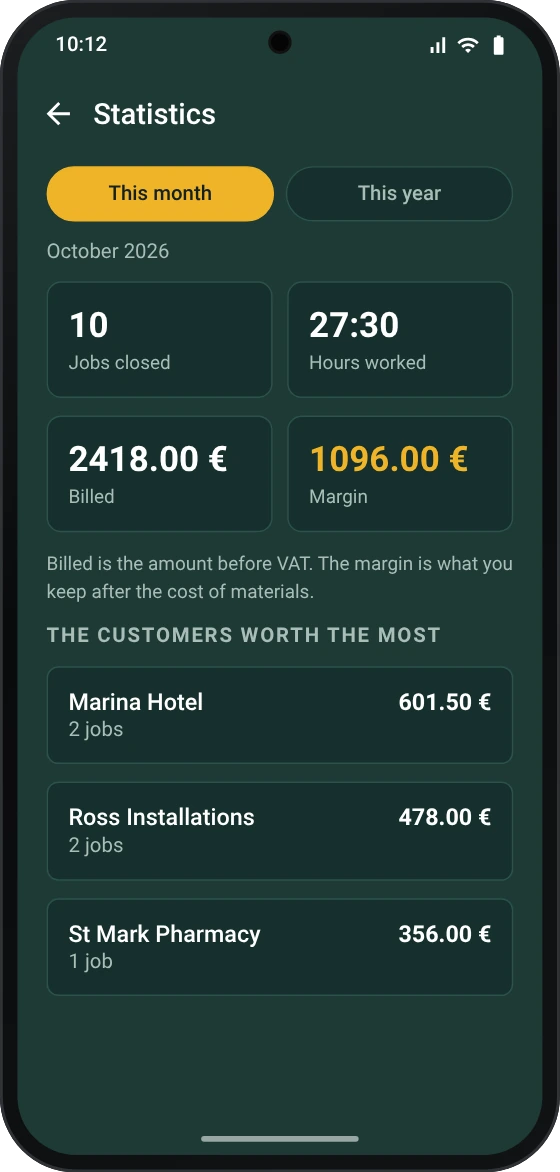
Choose This month or This year and see at a glance: jobs closed, hours worked, billed and margin.
Billed is the amount before VAT. The margin is what you keep after the cost of materials. Below you find the customers worth the most.
Backup and changing phone
Where to find it: MoreSettingsBackup and restore
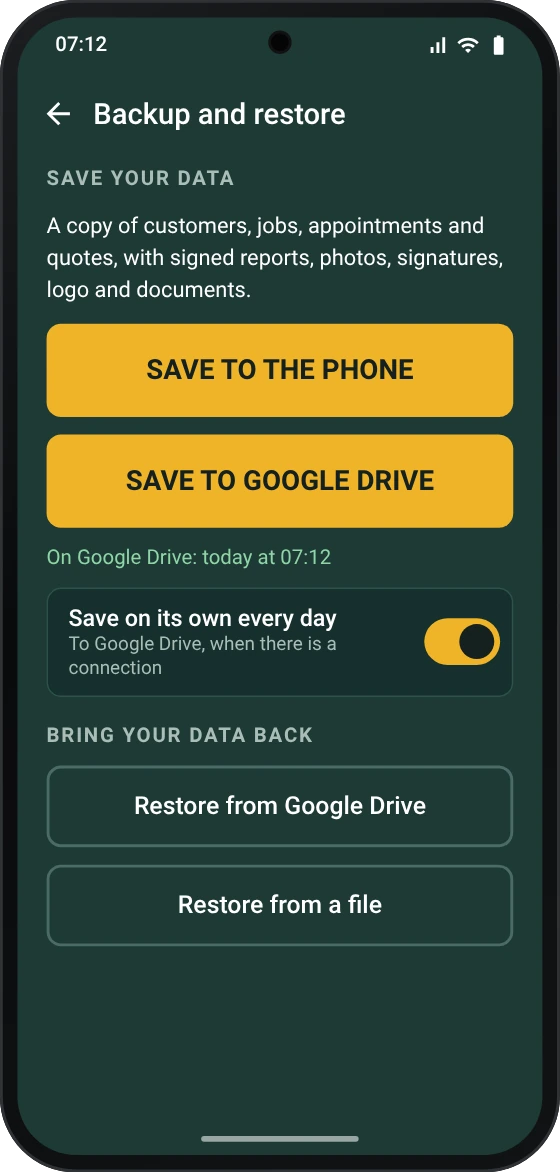
Your data lives on your phone. Always keep a copy: if the phone breaks or you change it, you lose nothing.
Save to the phone
Creates a file with customers, jobs, appointments, quotes and materials, together with signed reports, photos, signatures, logo and documents, in the Download folder.
Save to Google Drive
The copy goes into your own Drive, in a space only Interventus can read. Turn on Save on its own every day and forget about it: it runs when there is a connection. Photos, signatures, PDFs, documents and logo go along with the data; each time only the new ones.
On the new phone
Install Interventus, then Restore from Google Drive or Restore from a file. What is in the app is replaced by the backup.
Colours and language
Where to find it: MoreSettingsAppearance
Five colours: Petrol green (the Interventus colour), Night blue, Charcoal and orange, Sand brown and Coal black, which saves battery on OLED screens. Tap a colour and the app changes right away.
The widgets take the chosen colour too. The app icon and the PDF report stay as they are.
Under Settings → Language choose Italian or English. In English, reports and quotes come out in English too.

Home screen widgets
Three widgets to see your day and do the main things without opening the app.
Next appointment
Time, customer, address and how soon it starts. Navigate opens navigation, Call phones the customer, Start job opens the job, Running late prepares the message "I'm running a few minutes late". Below, the appointment after.
Job in progress
The timer runs live on the home screen. Stop and Start work without opening the app; Photos, Material and Sign open the job at the right spot. When nothing is in progress: New job and Open jobs.
Week
Monday to Sunday, today highlighted and a dot for each appointment. Tap a day to see its appointments: Navigate takes you to the address, Open opens the appointment. The + creates one on the chosen day.
To add them: press and hold an empty spot on your phone's home screen, tap Widgets, look for Interventus and drag the one you want wherever you like.
The demo
Where to find it: MoreDemo
Made-up customers, jobs and appointments, as if the app had been in use for two weeks. You can try everything, signing and making reports included, for 30 minutes.
At the top there is the yellow DEMO bar: LEAVE takes you back to your own data, untouched. Nothing from the demo is saved.
The subscription
Where to find it: MoreSubscription
After the free trial, Interventus PRO is a monthly or yearly subscription, paid through Google Play. You only pay if you tap SUBSCRIBE.
Cancel any time from the Play Store: your profile picture, Payments & subscriptions, Subscriptions, Interventus, Cancel subscription.
Good to know. If the subscription runs out, your data is not deleted.
Where your data goes
Interventus creates no account and keeps nothing of yours on our servers: your customers' data stays on your phone. The Google Drive copy goes into your Drive.
The app works without a connection too: customers, calendar, jobs, photos and reports stay on the phone. You only need a connection to send the report, for the Drive copy and for the subscription.